
The Masking feature allows users to edit colors separately for the person and background.
Upon entering Masking, the Person tab is selected by default. Once the subject is detected, a red overlay mask appears on the canvas to indicate the selected area, and the same applies to the background when it switched.

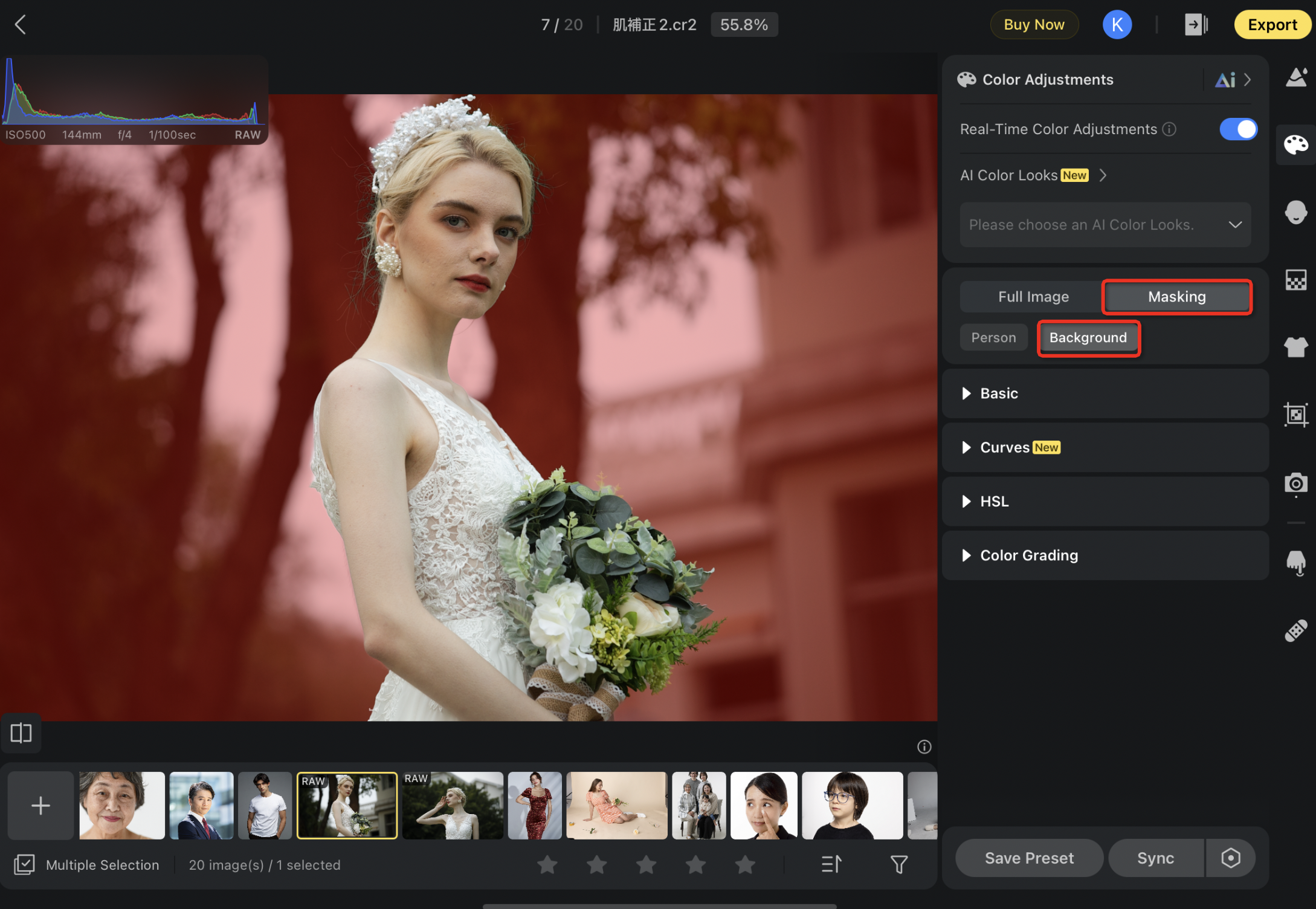
As users adjust the sliders, the red mask disappears, revealing the applied changes. An eye icon appears next to the mask tab.
Toggling off the eye icon hides the effect, while adjusting any slider automatically enables it.
Local Color Adjustments include the following tools: Basic, Curves (excluding parametric curves), HSL and Color Grading
Was this article helpful?
YesNo




