
Evoto’s Cloud Space enables seamless collaboration and cross-device access through cloud-based storage and synchronization. With this feature, you can manage personal and team projects, upload your work to the cloud, and access it in real time across your devices.
Note: Cloud synchronization is currently supported on Windows and macOS, but iPad support is not yet available.
What You Can Do with Cloud Space
- Switch between Spaces: Easily separate personal projects from team projects using dedicated cloud spaces.
- Upload Projects to the Cloud: Make local projects available online for access across all your devices or for seamless team collaboration.
- Download Cloud Projects: Retrieve projects that have been shared from your own space or from a dedicated team space.
- Track Upload/Download Progress: Monitor the status of your project transfers in real time.
- Sync Editing Effects and Resources: Ensure all adjustments, presets, and project-specific assets stay in sync across your devices.
Space Management
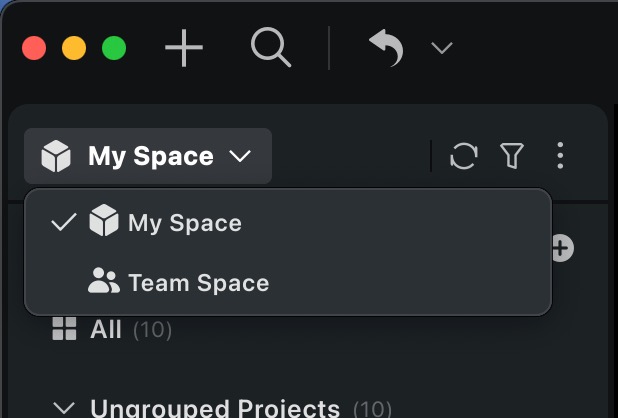
By default, Evoto opens with My Space, which is for personal projects. If you are added to a Team Space, you can switch between spaces from the dropdown menu.
- My Space: A dedicated space for your personal projects.
- Team Space: A separate space for shared projects and team collaboration. Team settings, such as naming, member permissions, and storage capacity, are managed in the Business Center (accessible under My Account).
Uploading Projects to the Cloud
Before uploading your first project, you must agree to Evoto’s Cloud Content Agreement. If you decline this agreement, cloud upload functionality will not be available.
- When Creating a Project:
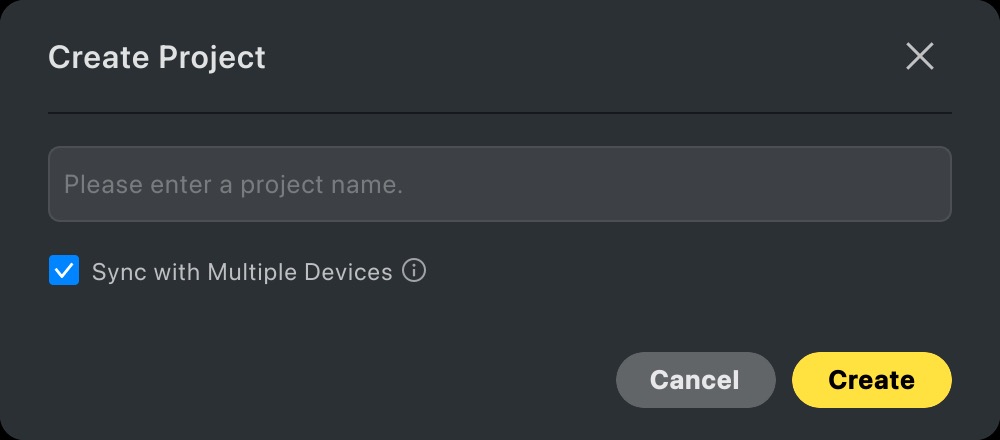
- In My Space, select Sync with Multiple Devices to enable cross-device access.

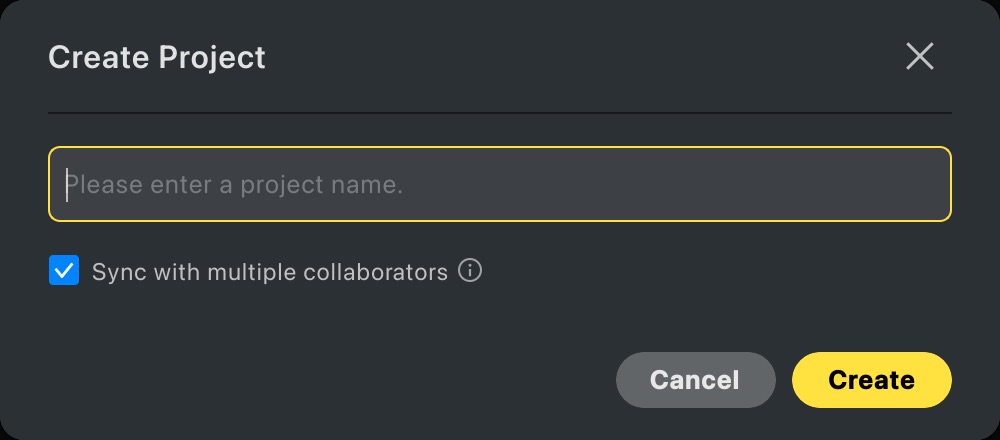
- In Team Space, select Sync with Multiple Collaborators to enable sharing within the team.
- In My Space, select Sync with Multiple Devices to enable cross-device access.
- From the Project List:
- Hover over a local project and click the Upload button.
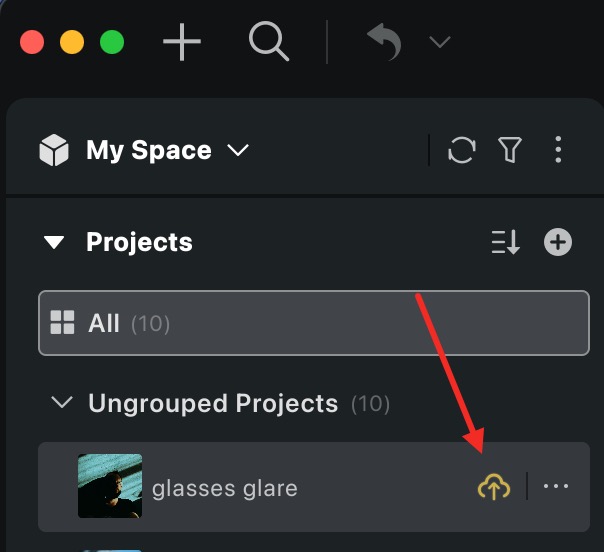

- Alternatively, right-click a project and select Sync to Cloud.
- Hover over a local project and click the Upload button.
- Collections Note: If a project contains images in a hidden collection, you’ll be prompted to manage them before uploading to the cloud.
Downloading Cloud Projects
When opening a cloud project, the original images in view are downloaded automatically.
- The first time you download a project, you will be prompted to choose a local storage path (this path can be modified later in Settings or the Transfer List).
- You can also:
- Hover over a project and click the Download button.
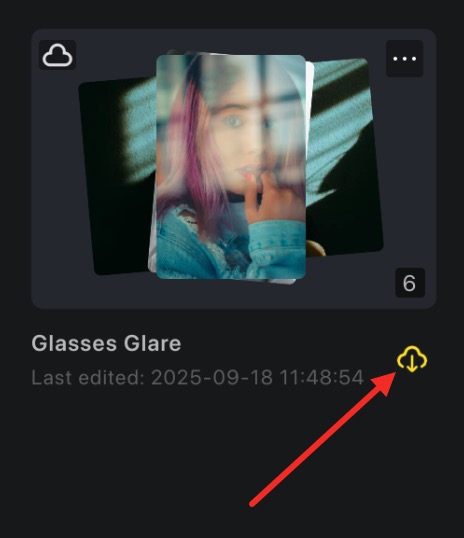

- Right-click a project and select Download.
- Select multiple projects for a batch download.
- Hover over a project and click the Download button.
Tracking Transfers
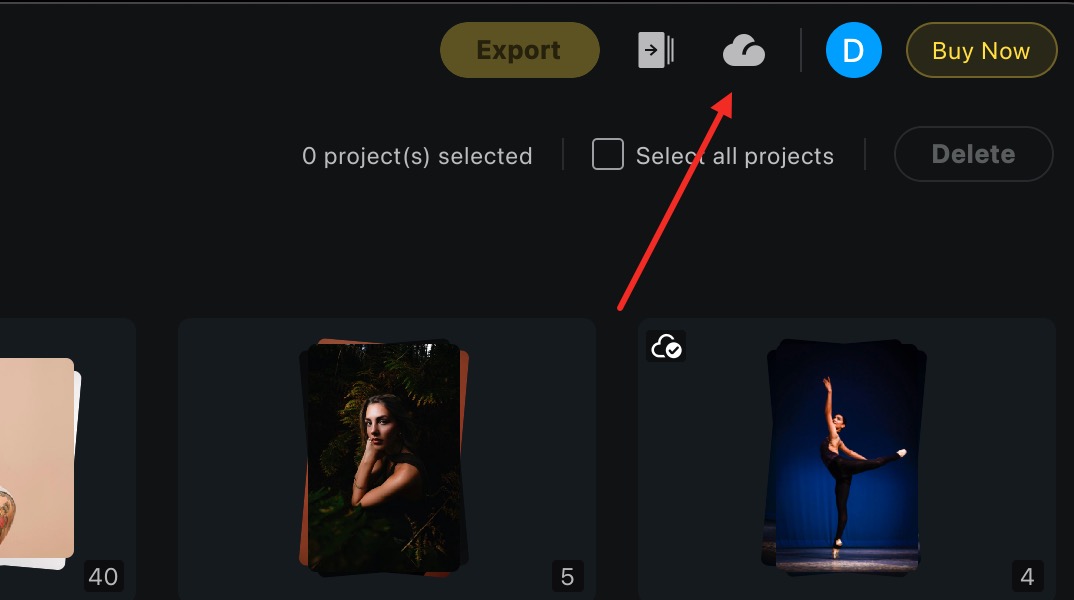
Click the Transfer icon at the top right of the navigation bar to monitor the status of your project uploads and downloads.
- You can pause or retry failed tasks from this list.
- Completed tasks are automatically removed from the list for a clean view.
Effect and Resource Synchronization
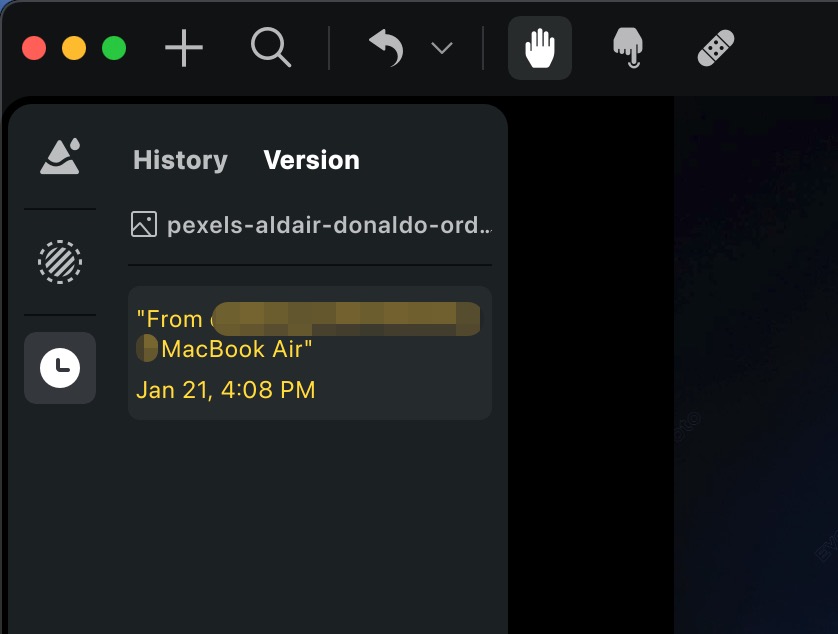
- Version History: Cloud projects support versioning, allowing you to restore or switch between past edits.

- Project Assets: All project-specific assets, such as sample images, LUTs, profiles, backgrounds, and skies, are synced within the project.
- Recommended Assets: Built-in resources that are part of the Evoto library remain available across all your devices.
Version Compatibility
- Local Projects: Projects uploaded using a newer version of Evoto may not display assets correctly in older client versions. The application will prompt you to upgrade if a preset requires it.
- Cloud Projects: If you attempt to open a project that was created or last saved in a newer version of Evoto, you will be required to upgrade your software to the latest release before you can access it.




